
Drone Touchup Concept
Its an Online Photogrammetric processing service providing the most advance and cost effective way to process small to large scale aerial/terrestrial images datasets. Linux OS and AMD-Threadripper powerded CPU enable the fasted market photogrammetric key point analysis process, dense and robust colorized point clouds, orthomosaic image development, digital surface and terrain model, among others. Clean and simple online web interface provides a perfect workflow solution for any
Supported Aerial Platform
Drone Touchup Service Support:
- Multi-Rotor Platforms Drones
- Fix Wing Drones
- 360 Cameras (Aerial/Terrestrial)
Recommendations
For best quality product
- You need at least 5 images
- Images must overlap by 65% or more
- For great 3D, image muts overlap by 83%
- Ground Control Points or GCPS its opcional, but recomended for hight accuracy georeferencec procedures
- Precise RTK services provided by additional fee using Leica Spider Net GNSS Network RTK over NTRIP Caster
Online Service Deliverables
- Precise Georeferencing datasets if GCP or RTK where used
- Orthorectified Image RGB/IR
- Colorized and classified Point Cloud in las/laz format
- Digital Surface Model (Geotiff)
- Digital Terrain Model (Geotiff)
- Textured Surface Digital Model
- Topographic Contours Lined Online/Ondemand developed
- Chanage Detection using multiples dataset
- 2D Viewer
- 3D Viewer
- Online Cross Section Viewer
- Online lenght, area, volumen calculation
Steps for Process Images Datasets
Follow the instruction to process an impressive image datasets
- Request Drone Touchup User Account sending an email to info@globalmatrixeng.com
- Submit complete real name, surname, valid email and phone number.
- Our technical support will replay to your email with activated username and password (keep this in your records)
- Access Service and Login with valid user and password provided at http://gserver.globalmatrixeng.com:9000/login/
- Press +Add Project bottom
- Create and Named a New Project
- Insert Project Description (optional but recommended)
- Select Images and GCP bottom
- Browse in your files, storage card or media Aerial Images datasets
- Select Desired Product (DSM+DTM most used)
- Select Review Bottom
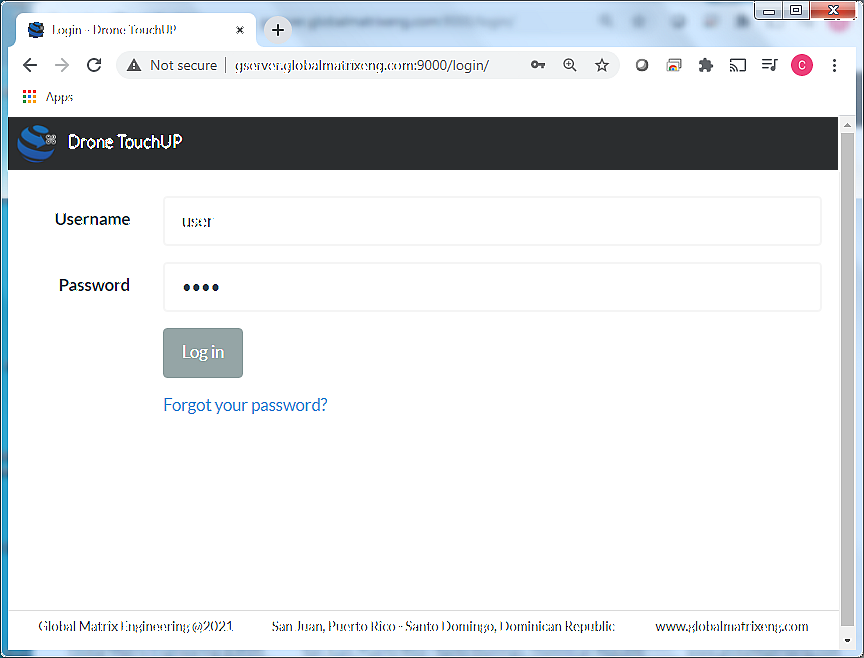
1-Drone Touchup Login
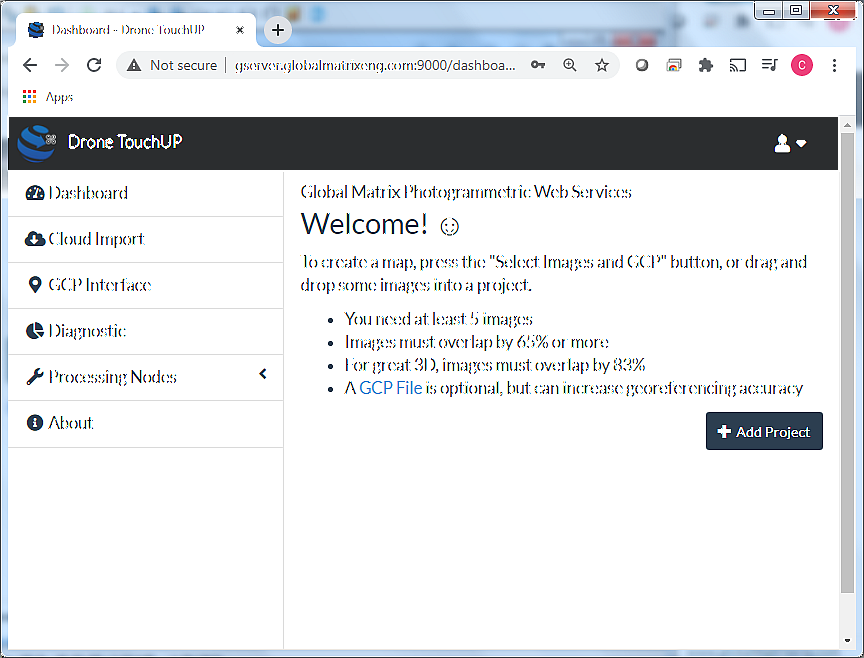
2-Dashboard User Welcome Message
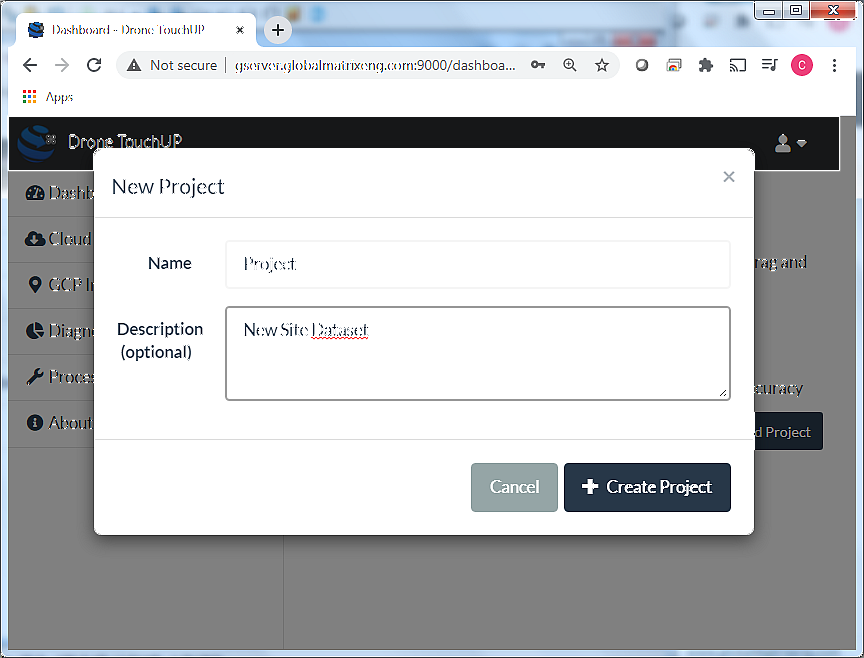
3-Create Project and Description
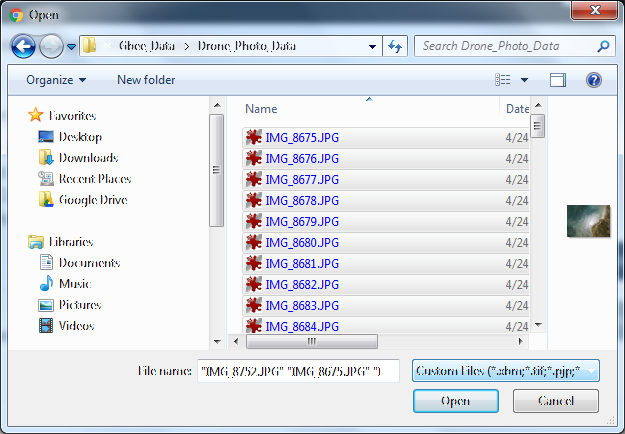
4-Import Image datasets and GCPS (Optional)
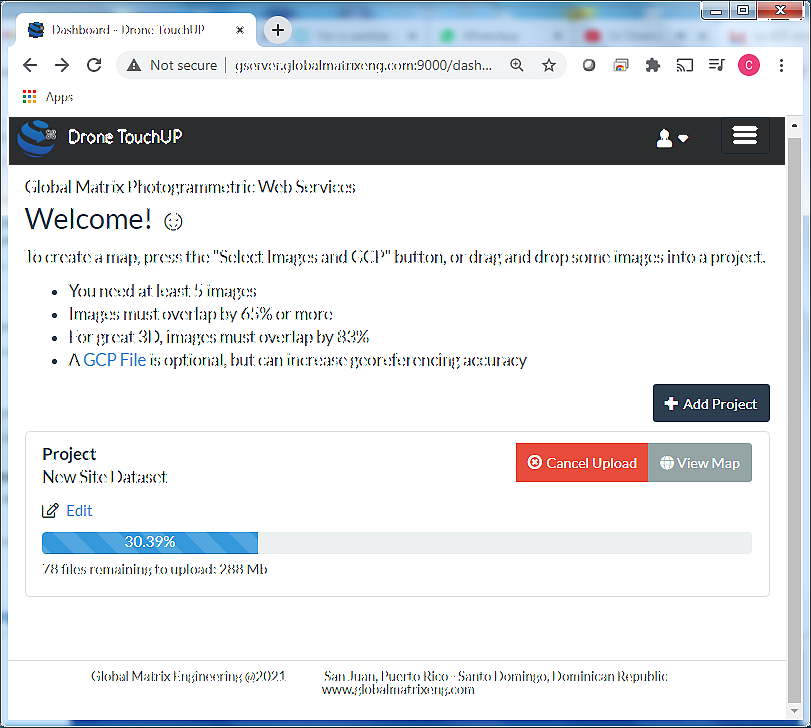
5-Image Upload Process
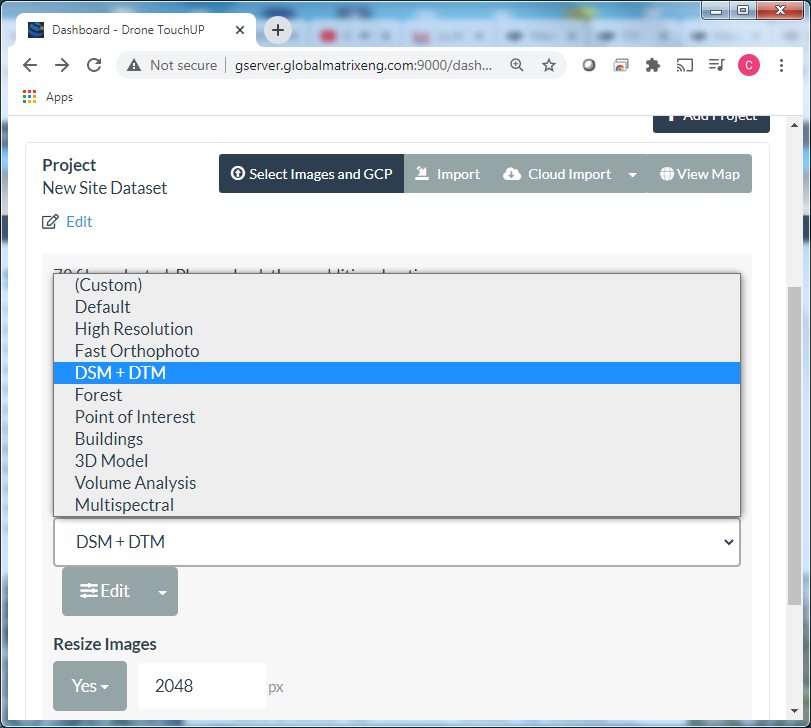
6-Select Desired Products
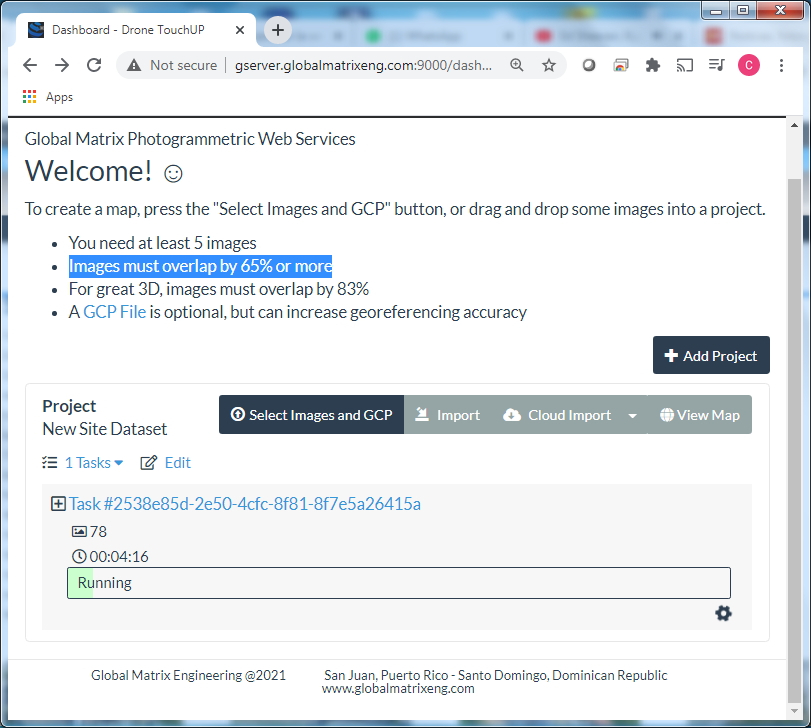
7-Datasets Process
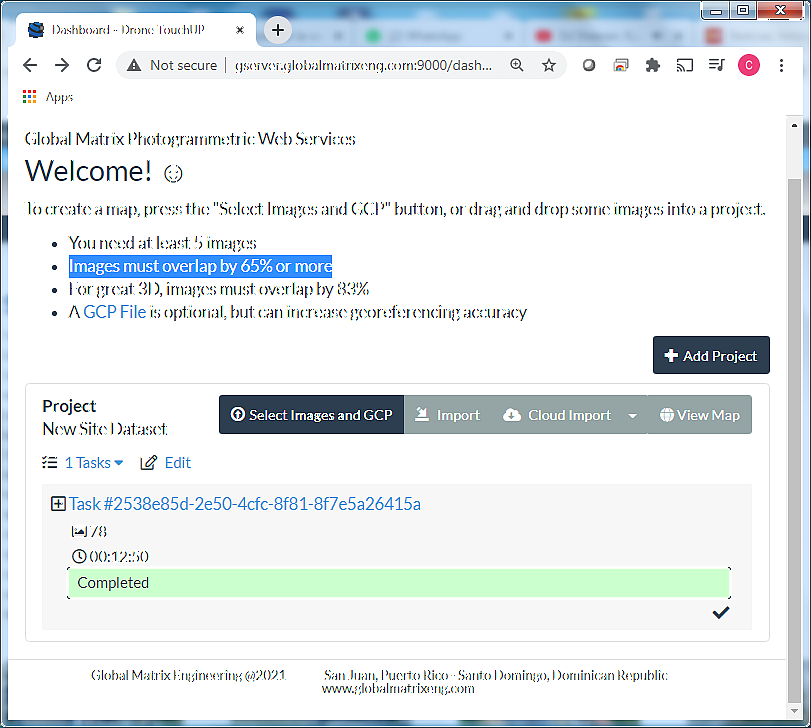
8-Process Completeness